
Docs / Sales
Quotes
Priced proposals: send them, get them accepted, and convert them to an order, an invoice or a project.
A quote is a priced proposal you send to a client. When they accept it, you convert it to an order, an invoice or a project in one click.
Projects
A quote can belong to a project. Pick one at the top of the form, and the order it converts to and the invoices raised from that order belong to the same project.
Lines and notes
Each line is an item from the catalog or a description you type. Pick an item and its description, price and tax fill in, and you can still edit them. Leave the item empty and type a description for anything else, such as delivery or a morning's labor. A typed line is priced at what you type.
To charge labor at a set rate, make a Labor item in your catalog and pick it like any other.
Add a note puts a line with words and no money on it, such as a heading for the lines below it or a caveat. It shows on every copy of the quote.
Creating a quote
Pick the client and add lines. The client and item boxes are search boxes: type a few letters of a name, number or SKU and the list narrows, however many clients and items you have. The item list ends with quick-add for a new item. Each line has a quantity, a unit price and an optional line discount. On a phone each line is a card, with buttons to move it up or down. The first column on a quote, order or invoice is the item number: lines from the catalog show theirs, and other lines show a dash. The printed copy leads with the same column, and so does the copy your client opens from a share link. Then fill in:
- Client PO: the client's own purchase order reference, up to 100 characters. It shows on the quote page and on the printed, emailed and shared copies. You can search for it on the quotes list and add it as a column.
- Bill to and Ship to: Bill to is required. Ship to is too on an order, but a quote can go without one. Tick Same as Bill to and it follows Bill to. Pick one of the client's saved addresses or add one from the picker. The text is a copy you can edit.
- A discount on the whole quote, taken off the subtotal before tax. See Discounts.
- Tax on each line: a named rate, or a group that charges several together. It fills in from the item and your workspace default. Tick Not taxable for an exception. See Tax.
- Shipping: a flat charge, untaxed unless you pick a Tax on shipping group for it.
- Payment terms: filled in from the client's own terms. What the term says is printed on the quote.
- Valid until: starts 30 days out. Change the number of days under Company Settings → Sales defaults, Quotes stay open for. Set it to 0 for a quote that doesn't expire unless you pick a date. The dashboard's Expiring quotes list shows sent quotes near this date. Once it passes, the share link says the quote has expired and can't be accepted or declined. The status doesn't change by itself.
- Public notes, which the client sees on every copy, and internal notes, which they never see.
The number comes from your format in Company Settings → Numbering (default
Q-000001). To match another system, type your own on the new quote screen.
Orders, invoices, purchases and payment receipts work the same way.
A quote can have no lines as long as its total is more than zero, for example freight or tax quoted on its own. Converting one asks you to confirm first.
The wrong client on a quote still in draft is fixed on its edit page: pick another client and the bill-to and ship-to addresses and the payment term follow them, with their tax exemption. Prices already on the lines stay as typed. Both clients' history records the move. After that the client is fixed: duplicate the quote and change the client on the copy. Clear under an address empties it.
Optional lines and options the client picks
Options… under a line's description opens two settings that let the client choose what they buy. A line that already has either one set shows them open.
Optional makes the line an add-on they can take or leave. It starts unticked: it's priced on the quote but not in the total.
Option group makes the line one of a set of alternatives. Give two or more
lines the same group name, such as finish, and the client picks exactly one
of them. The Shown as box is what the choice is called on their copy, for
example Finish. The first line that names it sets it for the whole group.
Mark the default choice with the radio button beside the group.
As you type, the What the client chooses panel under the lines lists the groups and add-ons, so a typo in a group name shows up there. The totals gain an Options available line: the value of everything on offer that isn't in the total.
What the client sees
On the share link, the body of the quote is what they're being charged for. Below it, Options available lists the add-ons and alternatives with their prices, and Your options gives them a checkbox for each add-on and a choice for each group. The total updates as they tick. Update my choices sends their answer back: the total, the tax and the deposit are recalculated, and the History tab records what they picked.
Once they accept or sign, their choices are locked. The lines they ticked are the agreement, they can't change them from the share link, and converting the quote uses those lines. The signature covers the choices too.
Offer one item at several quantities
When a client asks what an item costs at 25, 50 or 100, offer all three on one quote. Pick the item on a line, then click Offer at quantities… under it. The box fills with the quantity breaks on the client's price list, if the item has any. Change them as you like, separated by commas, and click Offer these quantities.
The line becomes one row per quantity, each priced for that quantity from the client's price list, under one option group called Quantity. The first row names the item; the others read Same item at another quantity. Change a quantity and its price follows the price list, unless you typed a price on that row. Quantities… on the first row adds or removes quantities. The radio button marks which quantity is in the total until the client picks.
The quote page, the printed and emailed copies and the share link show the item once, over a table of quantity, unit price and total, with the row in the total marked. On the share link the client picks one row under Pick one quantity, and once they accept, the row reads Chosen. The order converted from the quote has the one line they picked, at its quantity and price.
Templates
Keep the quotes you write again and again under Quotes → Templates. A template holds the lines with their options, the terms, a percentage deposit and how long the quote stays valid. It doesn't hold a client, and a fixed deposit amount isn't saved.
- Save as template on any quote makes one from it. Add-ons go back to unticked, and the client, number and dates aren't kept.
- Use on a template asks for a client, and a project if you use them, then creates the quote. Costs and tax rates are worked out as of today. Prices stay as saved, except a line saved at zero, which takes today's price.
- Edit changes the template without touching quotes already made from it. Untick Offer this template when raising a quote to retire it. It stays on the list with a Retired badge and loses its Use button.
The list is sorted by how often each template has been used.
Discounts
A discount is a percentage (0–100%) or a fixed amount. You can put one on any line and one on the whole document.
- A line discount comes off that line's quantity × unit price. The line shows the discounted amount, with the discount noted under the description on the printed, emailed and shared copies.
- The document discount comes off the subtotal before tax and shows as its own row in the totals.
- For tax, the document discount is spread across the lines in proportion to their value, and each taxable line is taxed on what's left. A discount always reduces the tax. Shipping is never discounted, and a fixed amount never takes a line or a document below zero.
Orders, invoices and purchases take discounts the same way. They carry over when you Convert, Invoice or Duplicate, and the History tab records a discount change like a price change.
The quote page
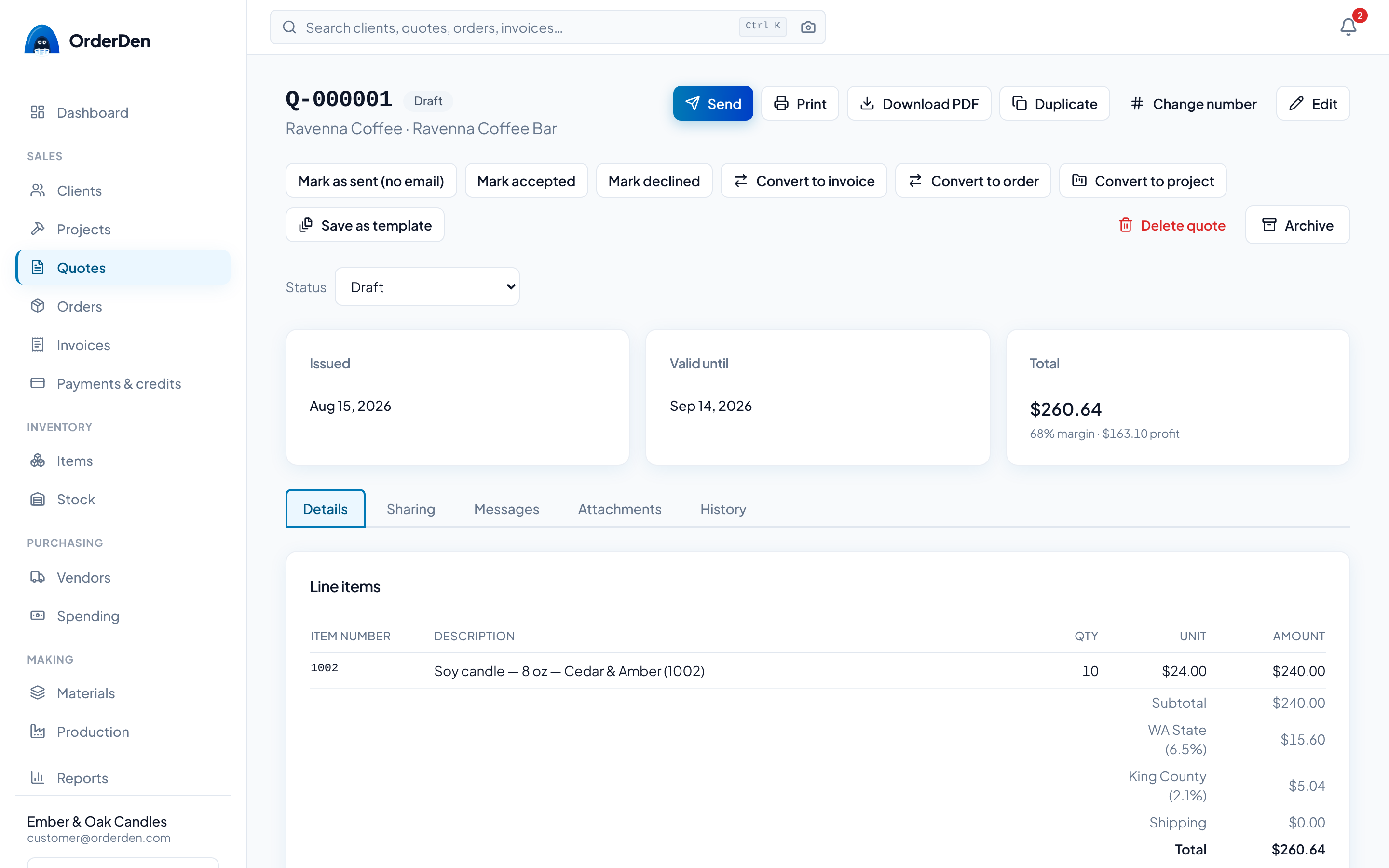
The number, the status, the buttons and the Issued, Valid until and Total cards stay at the top. Everything else is on tabs: Details (the lines, options, deposit, signature and terms), Sharing (the share link, the follow-ups and the email), Messages, Attachments and History. Messages and Attachments show a count when there's something in them.
Under the Total, people who can see costs get the quote's margin, such as 62.4% margin · $48.10 profit, worked out as an order's is from the lines in the total (an option the client hasn't ticked isn't). It says on 3 of 5 lines when some lines have no cost and Margin unknown when none do. It never prints and isn't on the share page.
The tab is part of the address, so you can bookmark a quote open on its history or send someone the link.
Duplicate copies the quote into a new draft for the same client, whatever its
status. It keeps the lines with their add-ons and options (add-ons go back to
unticked), the discount, shipping, addresses, terms, deposit and the notes the
client sees, and stays valid for as long as the original did. It gets a new
number and starts without a client PO, project, internal notes or signature.
The client's Sales tab has Duplicate next to their recent quotes. On the
API it's POST /quotes/{id}/duplicate.
Statuses
Draft → Sent → Accepted, Declined or Expired. Set them on the quote page, or let the client accept or decline on their share link.
The Status picker under the buttons sets a status by hand, including Converted. Converting normally sets that one, so choosing it or moving off it asks you to confirm, and the quote's history records the change with your name. A declined or expired quote can be marked Accepted after all, which raises its deposit invoice if it asks for one.
Moving a quote off Accepted (back to Sent, say) opens the client's options again. If its deposit invoice hasn't been paid, the dialog offers Void the deposit invoice too, ticked, so the client isn't chased for it. A deposit with money against it stays as it is, and the dialog says so.
Delete removes a draft. A quote that has gone further can't be deleted, so use Archive to take it off the list. Archived quotes are under the list's Archived filter.
Asking for a deposit
Turn on Ask for a deposit on acceptance on the quote form and enter a percentage or a fixed amount. The quote then shows what's due up front and what's left, on the page, the PDF and the share link.
When the client accepts, the deposit invoice is created and emailed with your deposit request wording. If you've connected a payment account, the client can pay it right away. If the client has no email address, nothing is sent and the Deposit card says so: add an address to the client, then send the invoice from its page. A payment term that asks for a deposit, such as "50% deposit, balance on delivery", fills in the numbers for you.
Convert to invoice, the order's Invoice button (with Everything left) and Raise invoices on the orders list take the paid deposit off as its own line, so the balance is all that's billed.
More in Deposits, installments and final invoices.
Getting it signed
New quotes ask the client to sign before they can accept. On the share link, Accept becomes a signature box: they type their name or draw it. OrderDen keeps the date, the IP address, the browser, the exact wording they agreed to, and a fingerprint of the quote as it stood. Signing is accepting.
Each quote carries its own terms and conditions, written under Signature and terms on the quote form and printed after the lines. They're copied onto the quote when you write it, so changing your default terms never changes what someone already signed. With no default terms set, a new quote has none, and clearing the box before you save leaves the quote with none.
The quote page tells you whether the quote still matches what was signed. Turn signing off for one quote on its form, or for new quotes in Company Settings → Documents.
More in Signatures on quotes.
Following it up
OrderDen can follow up on sent quotes for you, emailing the client 3 and 7 days after the quote was created. Follow-ups start off: tick them on in the Reminders section of Company Settings → Email.
Follow-ups go only while the quote is Sent. Emailing a quote marks it sent; creating a share link doesn't. They stop when the client accepts or declines, and when the quote passes its Valid until date.
The Follow-ups card on the Sharing tab shows when the next one goes and the ones already sent. It has a Pause switch for this quote and a Send now button. See Reminders, follow-ups and status emails.
Converting to an order
Convert to order creates a confirmed order from the quote, with its lines, discounts, per-line tax, addresses and customer PO. It's offered at any status until the quote is converted. The quote becomes Converted. The two documents link to each other, and each one's Attachments tab lists the other's files.
If the client already has an open order for this work, Convert to order asks whether to create a new order or link the quote to an existing one. Pick Link to an existing order and choose it from the list. Nothing on that order changes. The list holds the client's orders that aren't completed, canceled or linked to another quote.
Deleting the draft order (or invoice) made from a quote sets the quote back to Accepted, ready to convert again. Reopen quote on a converted quote sets it back to Accepted without deleting anything. It still names the order or invoice it became, and converting it again links back to that one instead of making another.
Only the lines the client chose come across. The choice goes into the line's description, for example Worktop (Finish), because the order has no groups.
Editing after conversion
A converted quote can still be edited with Edit. The Everything tied to this job card ends with a line naming the order it became, and saying that changes on the quote don't change the order. The quote's history marks the edit as made after conversion.
To carry the changes across, press Apply to the order beside that line. The order's lines, discount and shipping are replaced with the quote's, and its totals recalculate. It's available until something on the order ships or the order is invoiced. After that the line links to the order so you can edit it there.
Invoicing a quote directly
If you have nothing to ship, Convert to invoice creates the invoice straight from the quote, with no order in between. It has the same lines, tax and discounts, and takes off any deposit already paid on the quote.
On the Free plan, a line above the buttons shows how many of your 50 free invoices you have used once you reach 40. If you have used all 50, the button tells you so and nothing is created.
Choose which buttons the quote page shows in Company Settings → Sales defaults:
- Ask me each time (the default): both buttons.
- An order, then an invoice: for a business that makes and ships things.
- An invoice, with no order in between: for one that sells time.
The API allows both either way.
Starting a project from a quote
For a job with hours, materials and several invoices, Convert to project on the quote page opens a project with the quote's client. The contract amount is the quote's value before tax: the subtotal, less the discount, plus shipping.
The quote stays as it is. It keeps its status and lines and links to the project, so you can still convert it to an order or an invoice afterward. The project reads the quote's lines for what was agreed and what it was costed at. The project is named after the first line. Rename it on the project's Details tab.
Accepting a quote never creates a project by itself. You press the button.
Sending it out
Send is in the page header: it emails the quote with the PDF attached. Mark as sent (no email) changes the status without sending anything. On the Sharing tab you can create a share link the client can open without an account. Email goes out through the mail setup in Company Settings → Email. Send goes away once the quote is converted. The PDF and the email both lead each line with its item number, the same as the quote page.
The email form starts with no recipient, so nothing goes to the wrong person by default. Under it, the client's contacts (with their titles) and your workspace's members are one click each. Add as many as you need, or type an address.
The History tab records every send: who it went to, the subject, whether you added a note, which mail server sent it and who sent it. Creating a share link, replacing it with New link and revoking it are recorded too, and so is every edit after the first save, with who made it.
Everything tied to a job
Quotes, orders, invoices, payments and credit notes show an Everything tied to this job card once a document is part of a job. It lists the client's purchase order, the quote, the order and its shipments with their tracking numbers, the deposit and progress invoices, the invoices raised from the order, the payments and credit notes on each one, and the project. Each line links to its page and shows its status. The document you're on is highlighted. The card is the same on every page, so you can go from a payment back to the quote, or from the quote to the payment. Team members who can't see costs see the documents and their statuses without the amounts.
Everything on this page is on the free tier: one person, the whole product, no card.
Start free